
How to Combine PDF Files in Preview on Mac (Step-by-Step Guide)
 Denis
Denis
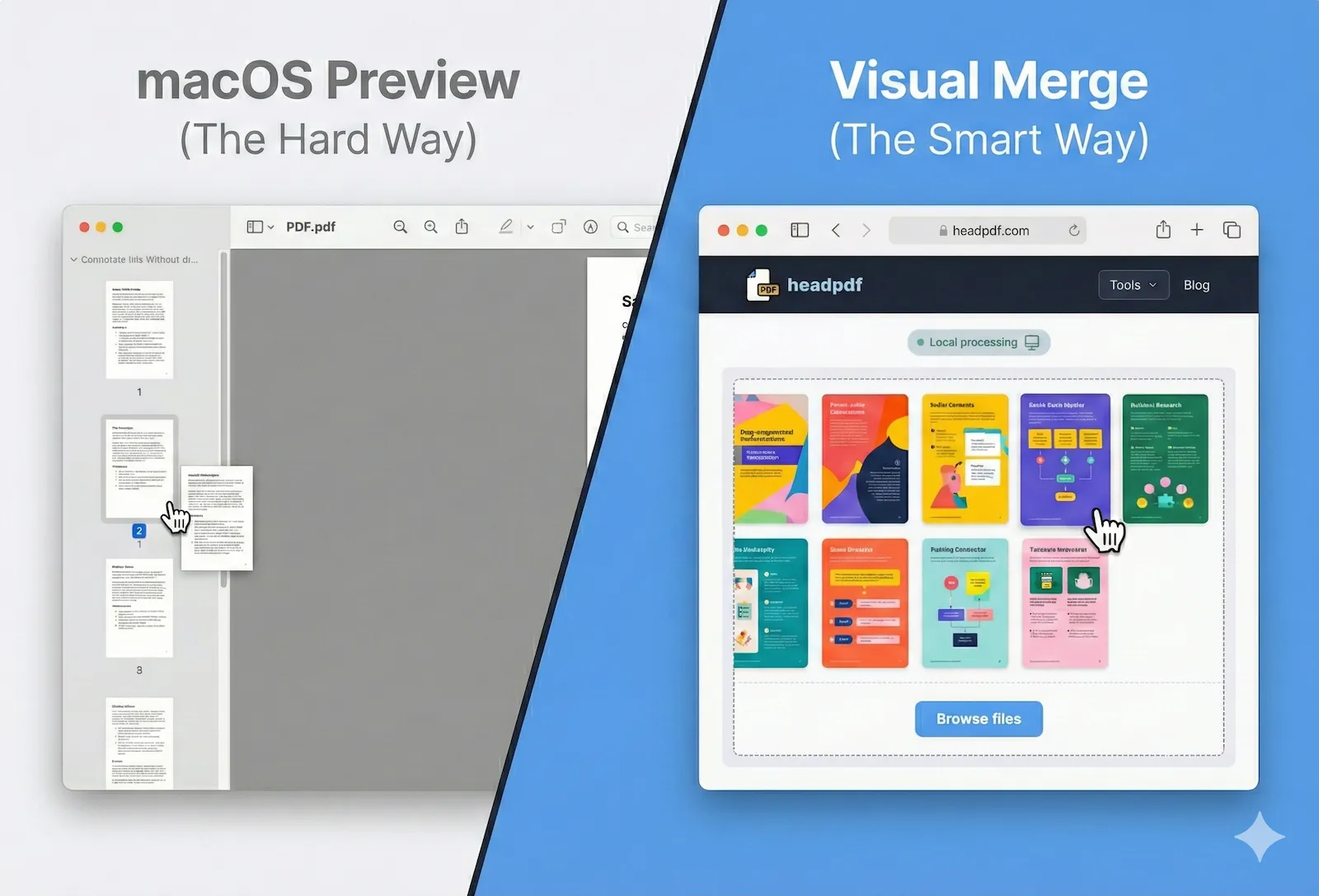
If you are using a Mac, the built-in Preview app is the default way to handle PDFs. While it's great for viewing, many users struggle when they need to combine two PDF files in Preview or manage multiple pages.
In this guide, we'll show you exactly how to use the Apple Preview app to join documents, and why a dedicated visual tool might save you time.
Method 1: How to Combine PDF Files in Preview (MacOS)
To merge PDF files on Mac Preview, you don't need to download anything. Follow these manual steps:
-
1Open the first PDF in Preview. Go to View > Thumbnails to show the sidebar.
-
2Select the thumbnail where you want to insert the other document.
-
3Go to Edit > Insert > Page from File and choose the second PDF.
-
4Drag thumbnails to reorder pages and then File > Export as PDF to save.
The Problem with the Preview App
While functional, combining multiple PDFs in Preview can be frustrating. If you have 5+ files, the sidebar gets cluttered, dragging pages is precise and prone to error, and you can't easily rotate or delete pages visually without clicking through menus.
Method 2: The Visual Way to Merge PDFs on Mac (headPDF)
While the built-in Preview app is okay for two files, it becomes a nightmare when you need to combine multiple PDFs with many pages. headPDF offers a "Visual Preview" mode that gives you total control over the document structure.
Upload your documents
Visit the Merge PDF tool and click the upload area. You can select files directly from your Mac Finder.
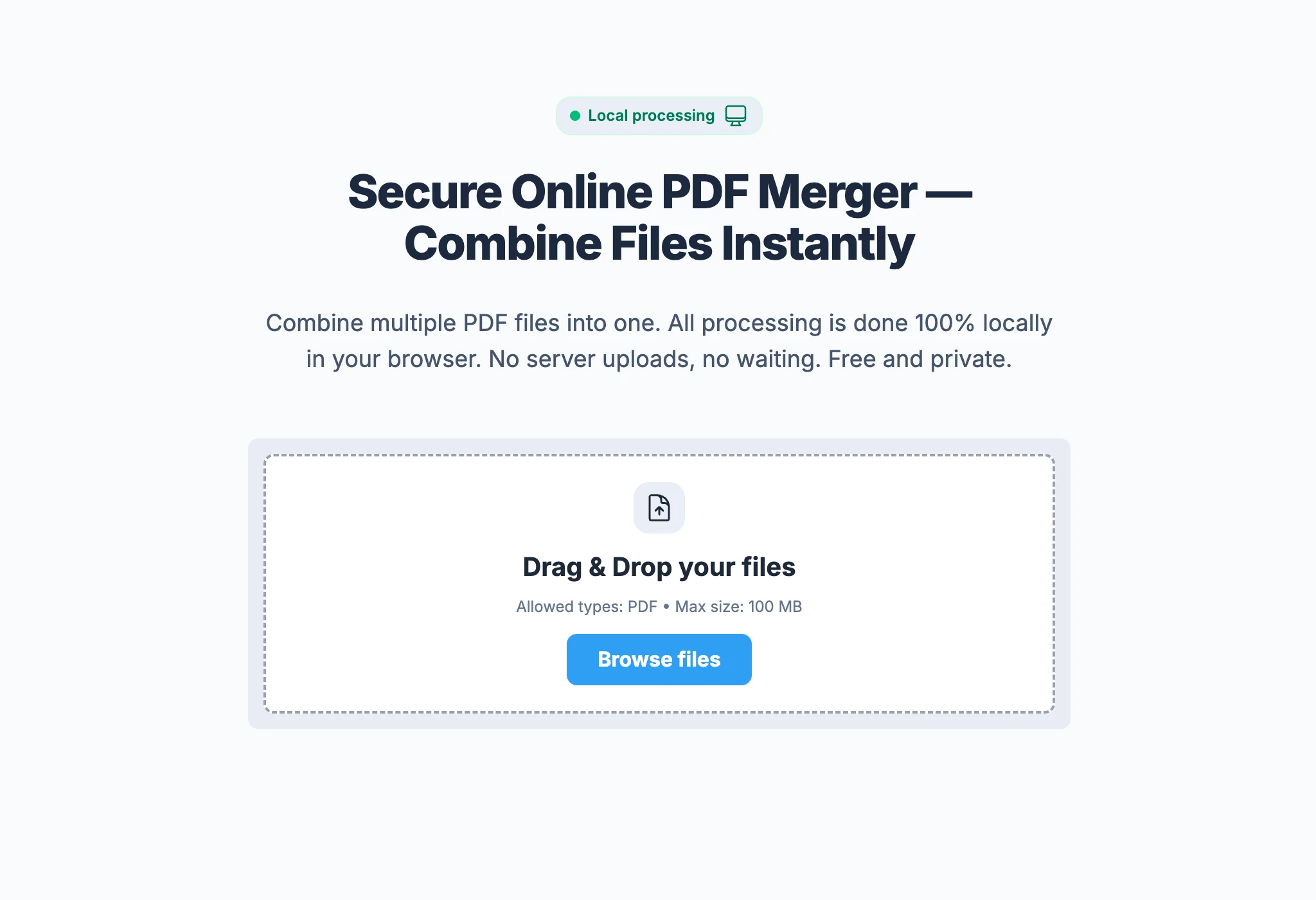
Step 1: The clean upload interface
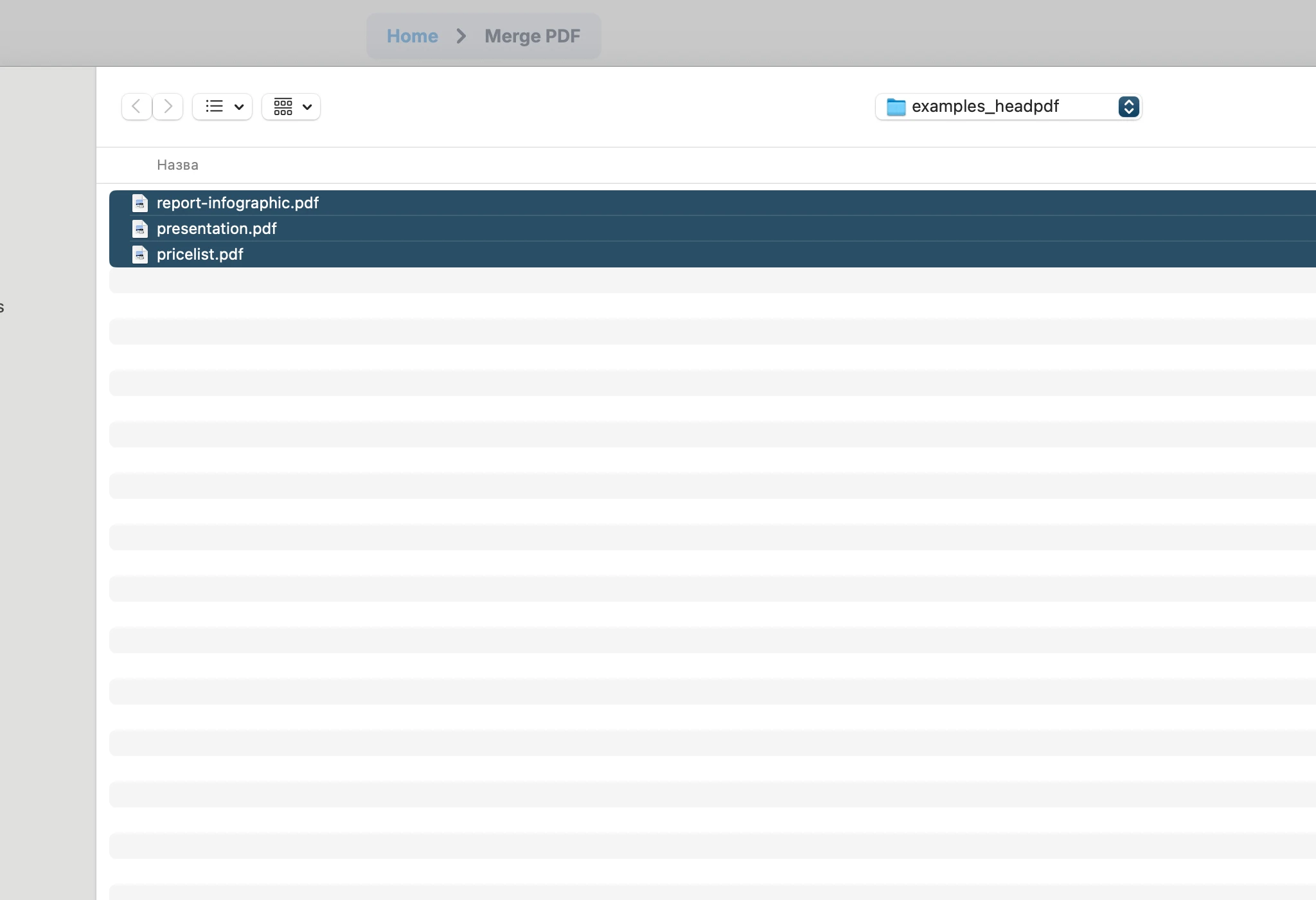
Step 2: Choose your files on Mac
Enter the Visual "Options" Mode
Once your files are added, you will see a list. Click the "Options" button to unlock the advanced visual editor. This is where headPDF beats Apple Preview.
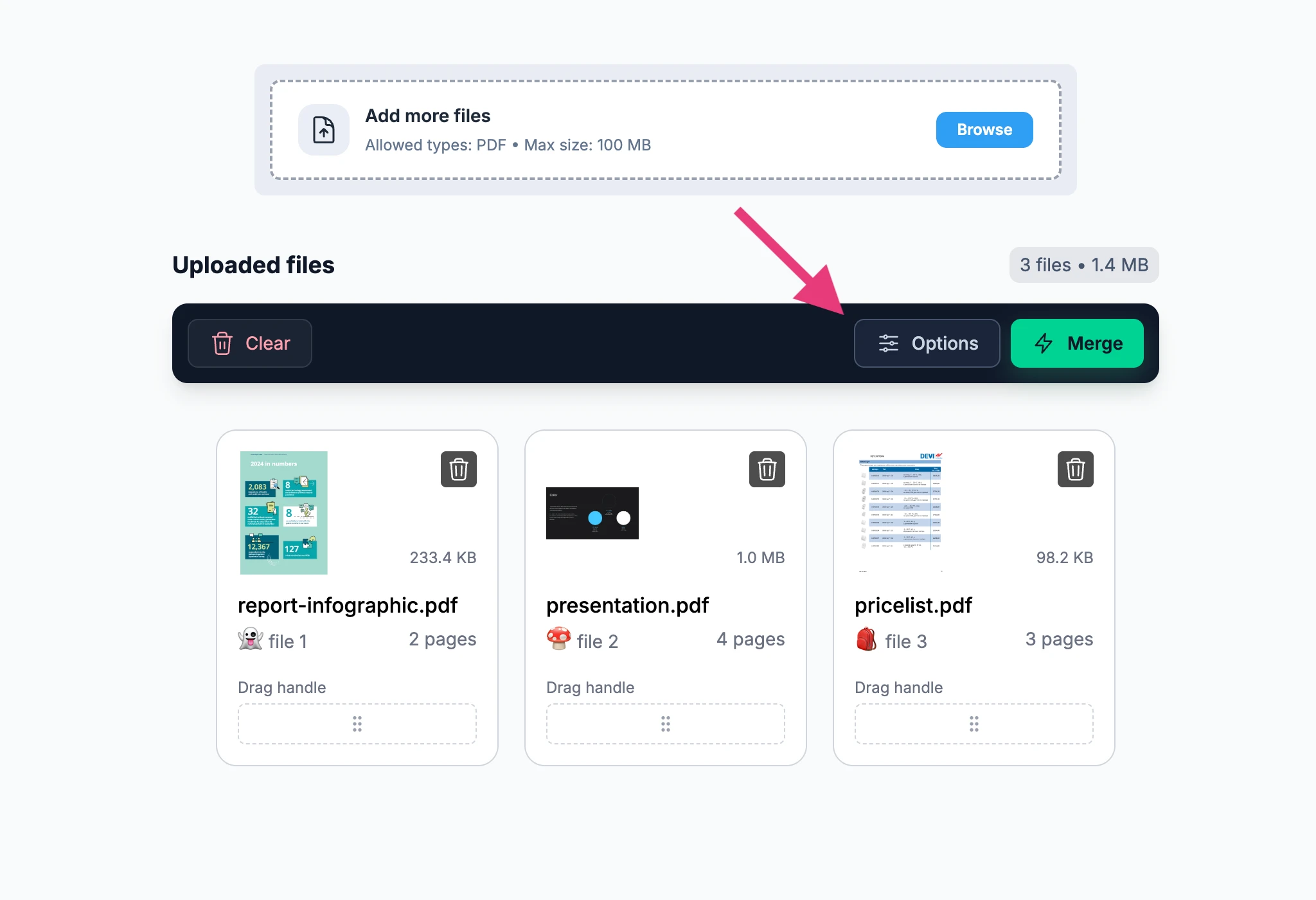
Advanced Page Control (Drag & Drop)
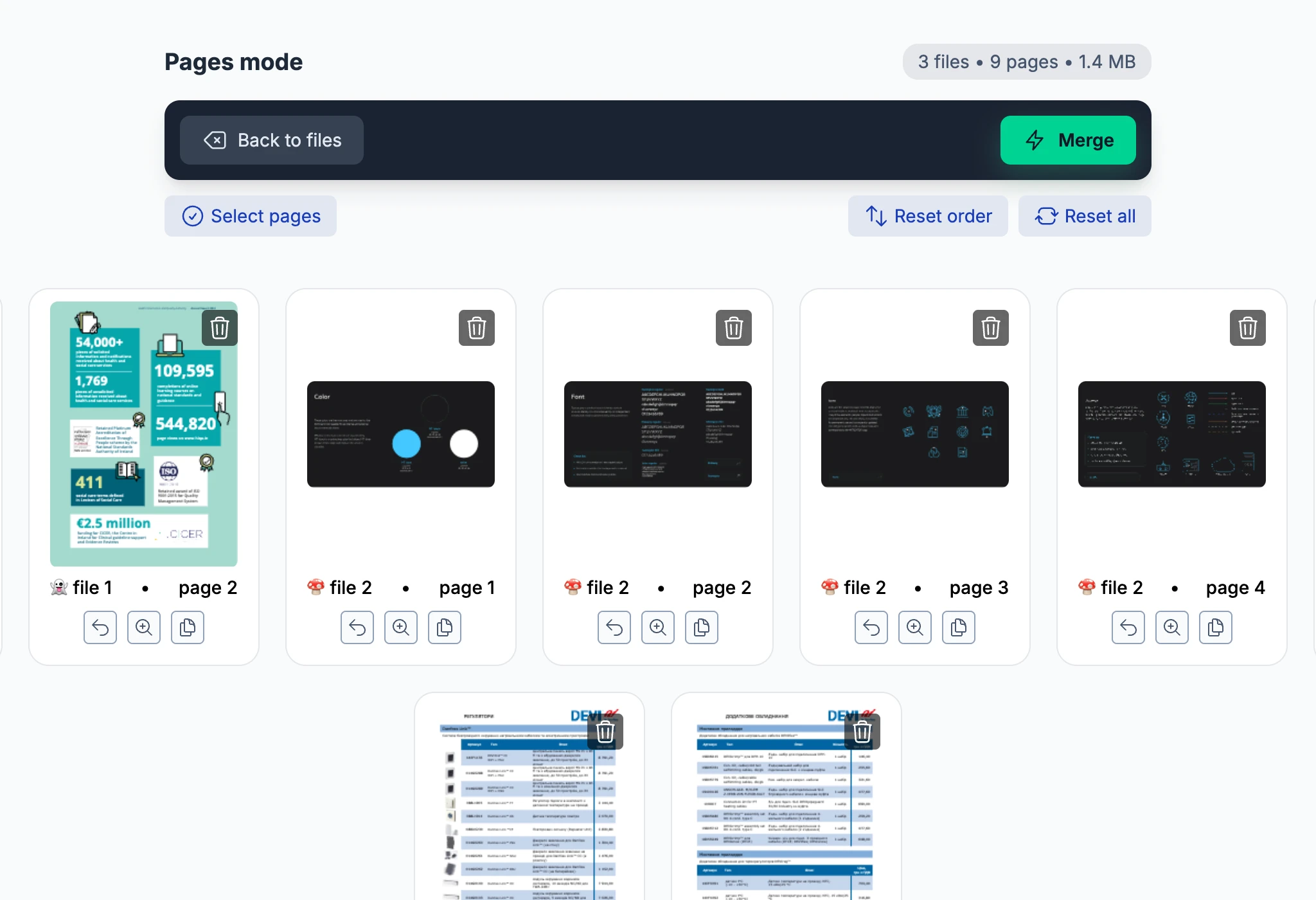
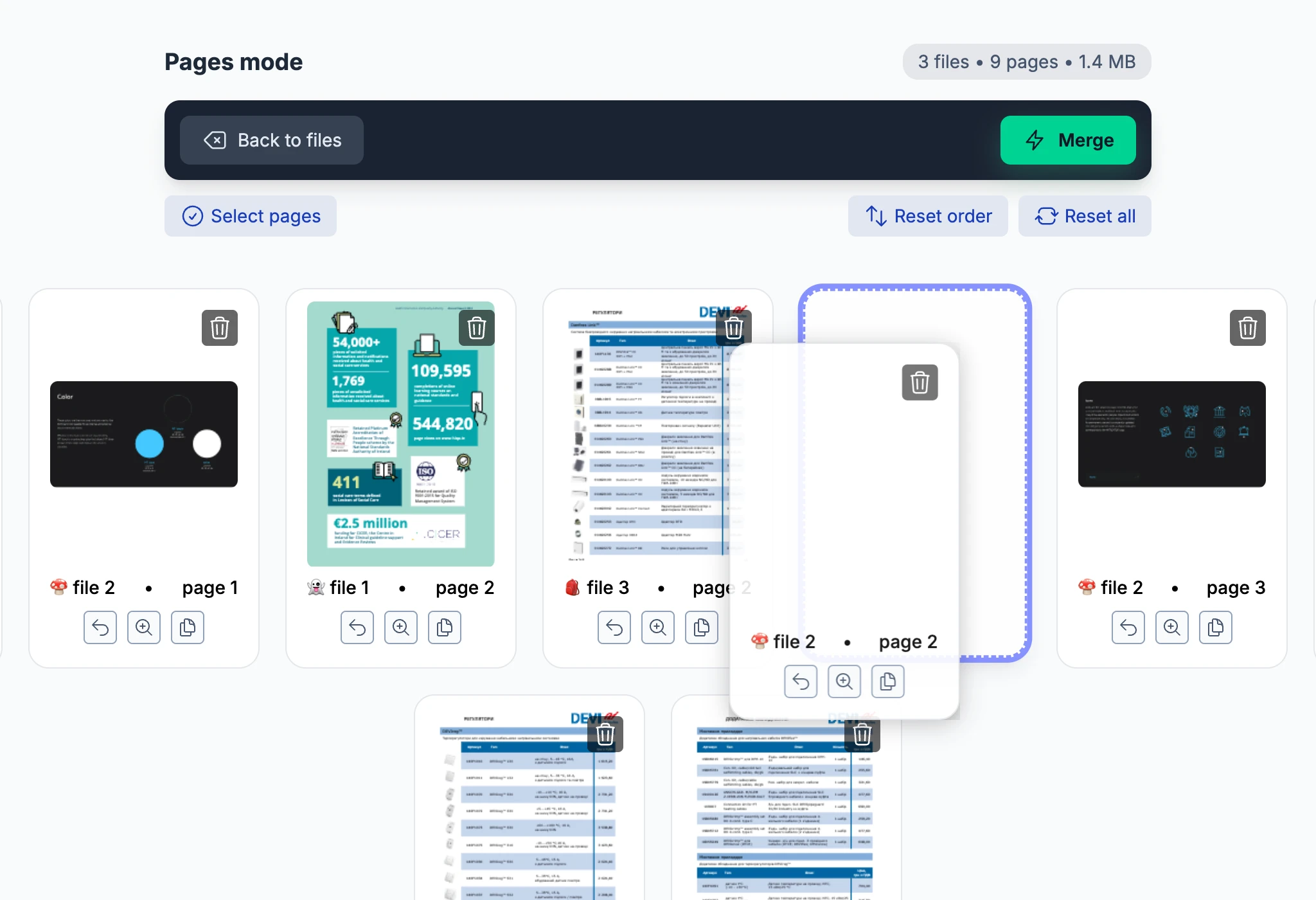
Your PDFs are now broken down into individual pages. In this grid view, you can:
- ✓ Drag & Drop to reorder pages
- ✓ Rotate individual pages
- ✓ Delete unwanted pages
- ✓ Duplicate pages instantly
Preview
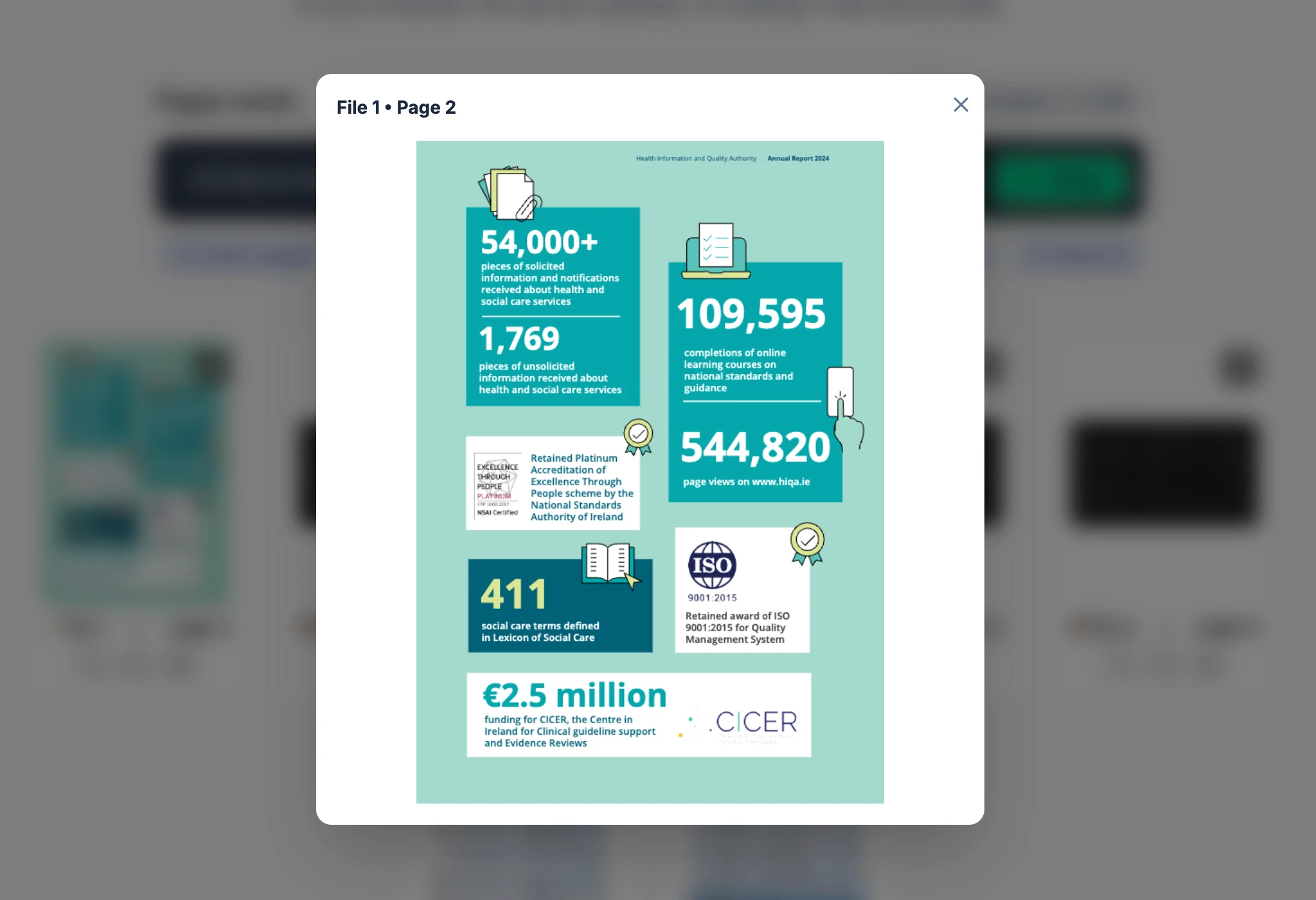
Not sure about a page? Click the Zoom icon to see a full preview in a modal. When ready, hit "Merge" and download your perfectly organized PDF.
Finish
When ready, hit Merge and download your perfectly organized PDF.
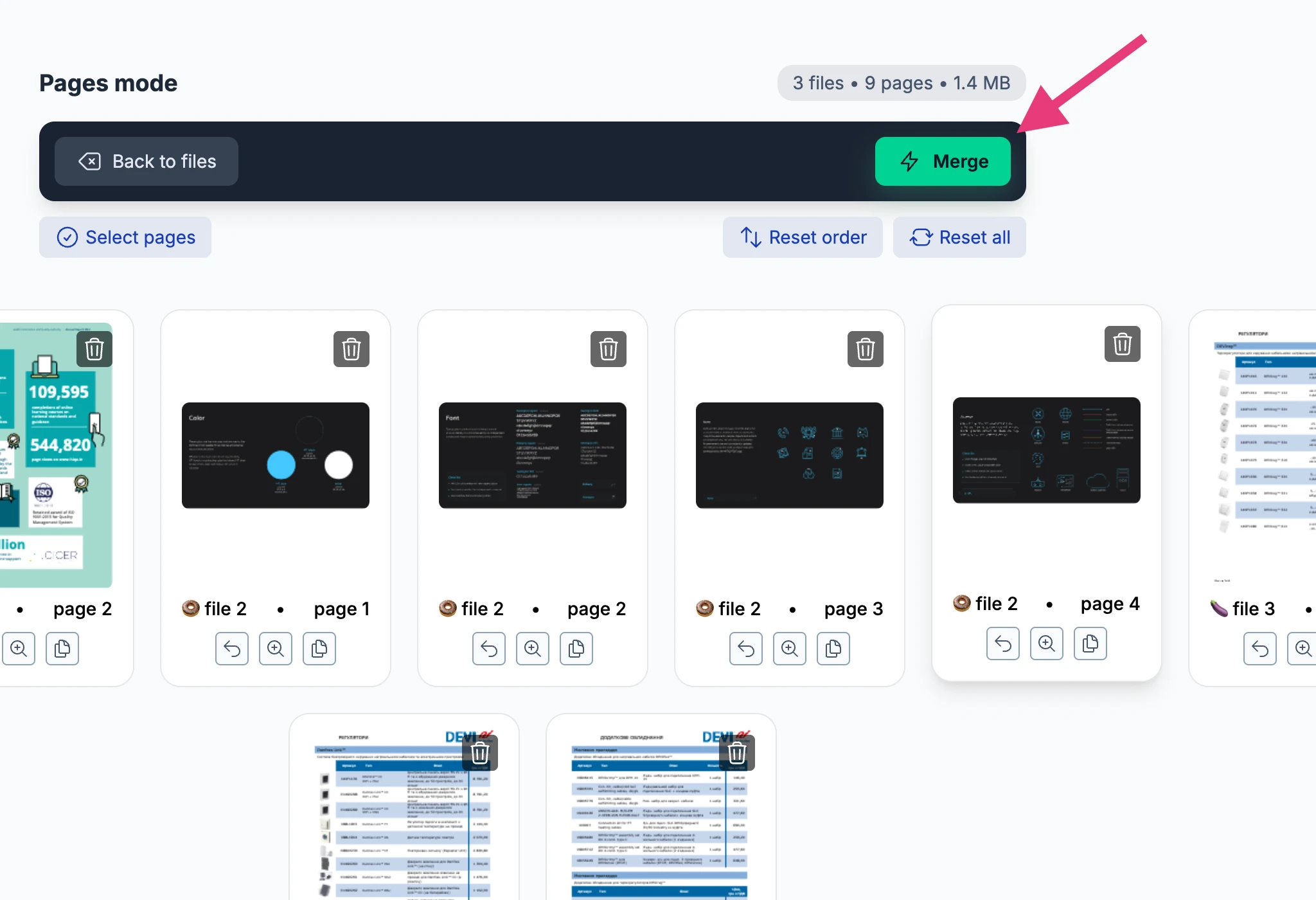
Step 8: Start the merging process
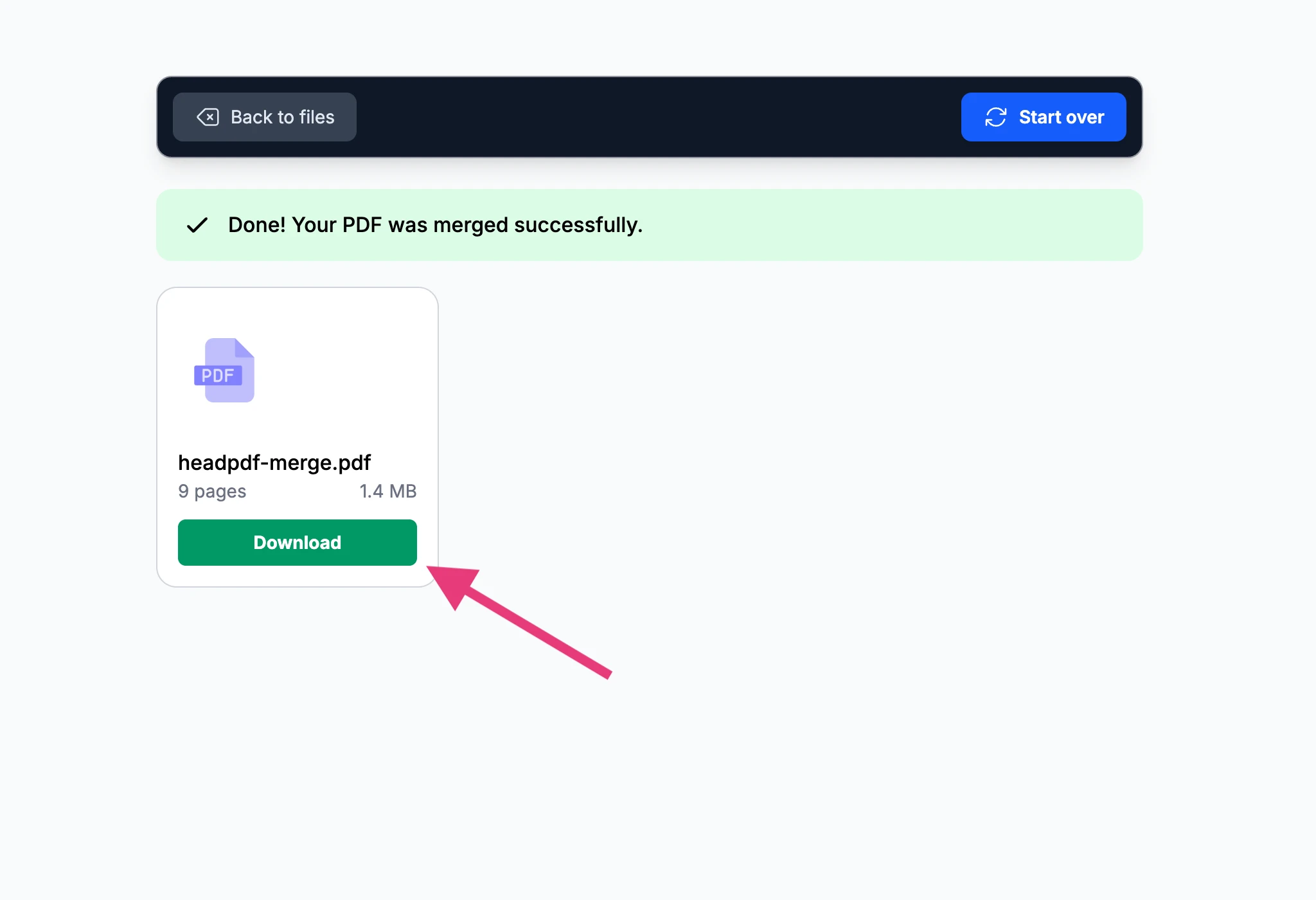
Step 9: Save your combined file
Why Mac Users Choose headPDF over Preview:
While Preview is just a viewer with "sidebar hacks", headPDF is a dedicated Visual PDF Architect. No accidental misplacements, no complicated menus—just a clean, intuitive grid.
FAQ: Combining and Merging PDFs on Mac
How do I combine two PDF files in Preview on Mac?
To combine two files, open the first PDF in Preview, then go to View > Thumbnails. Drag the second PDF file from your Finder directly onto a thumbnail in the sidebar. This will merge the two documents into one. Finally, go to File > Export as PDF to save your changes.
Why can't I merge PDF files in Preview?
- Permissions: The PDF might be password-protected or encrypted.
- Drop Zone: You must drag the file exactly onto an existing thumbnail, not the empty space below it.
- Form Fields: Some dynamic PDF forms block merging to protect data integrity.
How to combine multiple PDFs into one on Mac without Adobe?
The easiest way to combine multiple files without Adobe Acrobat is using headPDF. Unlike the Preview app, which requires manual dragging for every single file, headPDF lets you upload all your files at once, reorder them in a visual grid, and merge them with a single click—all while keeping your data private on your device.
Can I reorder pages after merging PDFs in Preview?
Yes, in the Thumbnails view (View > Thumbnails), you can drag individual page thumbnails up or down to change their order. However, this can be slow for large documents. headPDF's grid view is much faster for reordering pages in large "combined" files.
How do I save a merged PDF on Mac?
In the Apple Preview app, simply closing the window might not save the merge correctly. It is best to use File > Export as PDF. If you use headPDF, just click the Download button after the process is finished to save the new combined document to your Downloads folder.
Is it safe to merge confidential PDFs online?
It is safe if you use a local-processing tool. While most online converters upload your files to their servers, headPDF works just like the native Mac Preview app—everything happens inside your browser. Your files never leave your computer.
Can I combine a JPG and a PDF into one document on Mac?
Yes! In Preview, you can drag a JPG image into the PDF's thumbnail sidebar. headPDF also supports this—you can add images and PDF files together, arrange them in the order you want, and merge them into a single professional PDF document.
Ready to merge your PDFs?
Skip the complex Mac Preview menus. Try our visual, private merge tool today.