
How to Combine Screenshots into One PDF: A Guide for Mac, Windows, and Web
 Denis
Denis
Guide Contents:
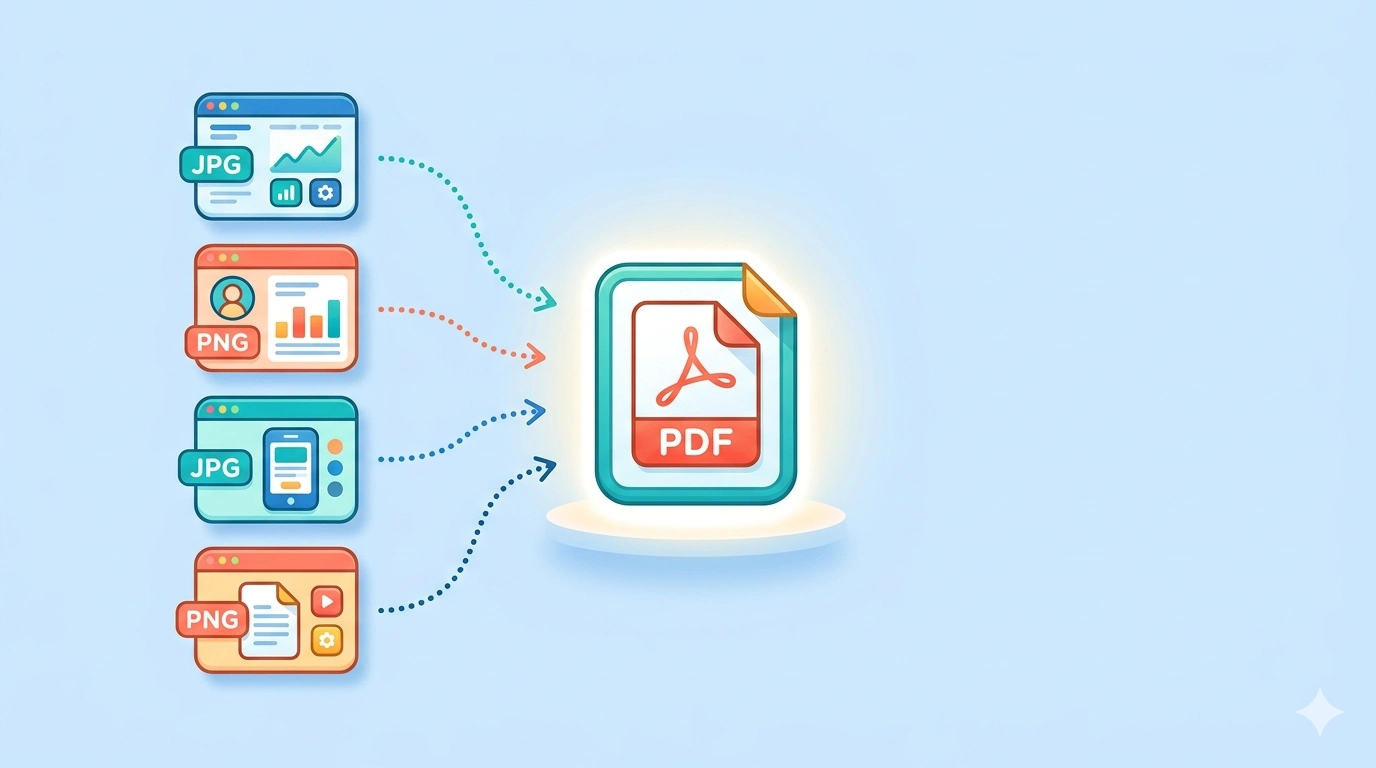
Sending a dozen scattered screenshots creates information noise and makes viewing inconvenient. Converting images into a single PDF file solves this problem: you get one structured document that maintains the correct sequence of frames, is ideal for printing, and looks professional in business correspondence.
How to merge screenshots on Mac using Preview
The Preview app is a native macOS tool that provides instant image conversion without using third-party software. Since the process happens locally, your data does not leave the device's memory, ensuring the same level of privacy as modern tools with client-side browser processing.
Step-by-step instructions for macOS
- Open Finder, hold down Command, and select the files you need.
- Right-click and select Open With > Preview.
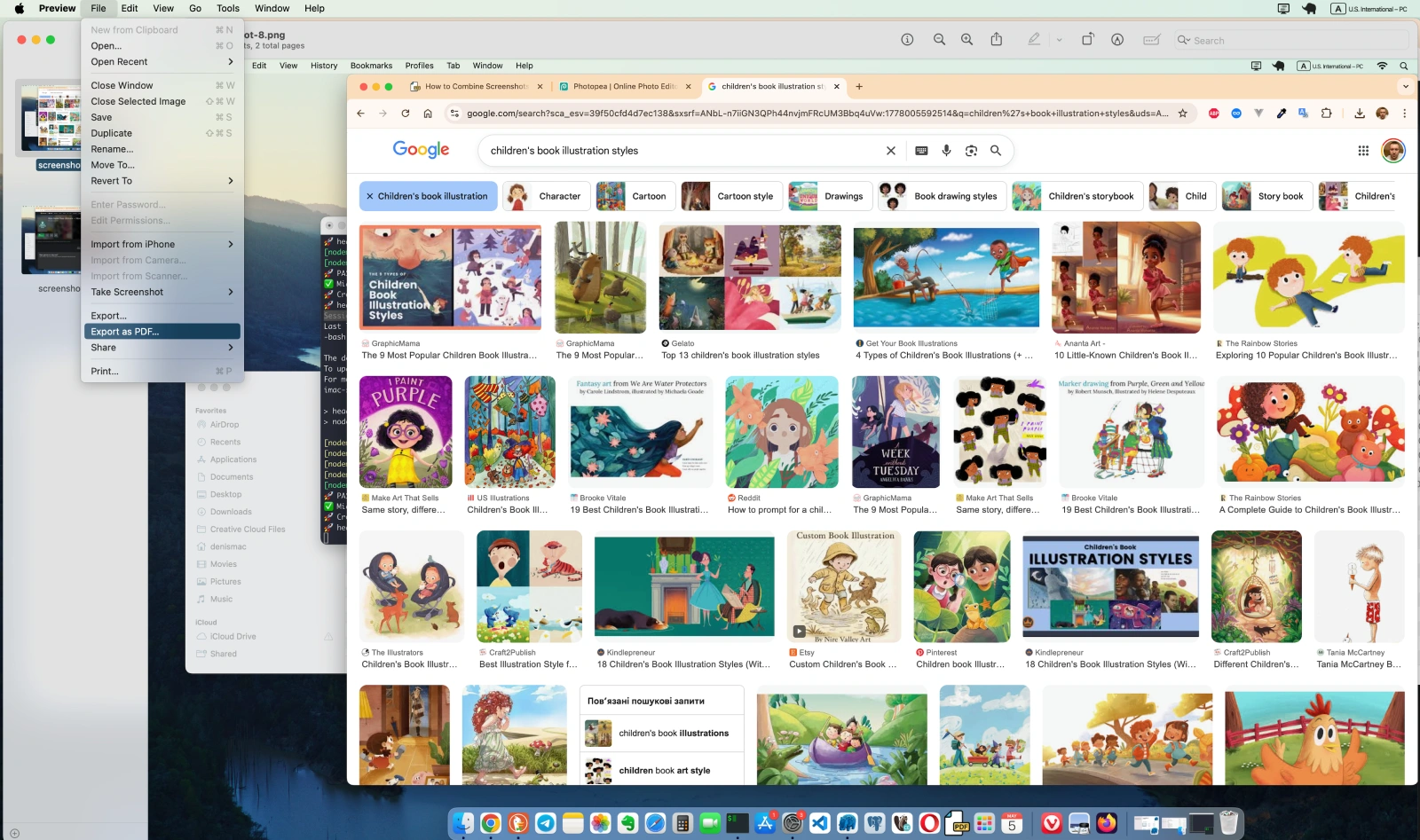
- In the top menu, select File > Export as PDF....
- Specify the save location and confirm the action.
How to change page order in Preview (Sidebar Hack)
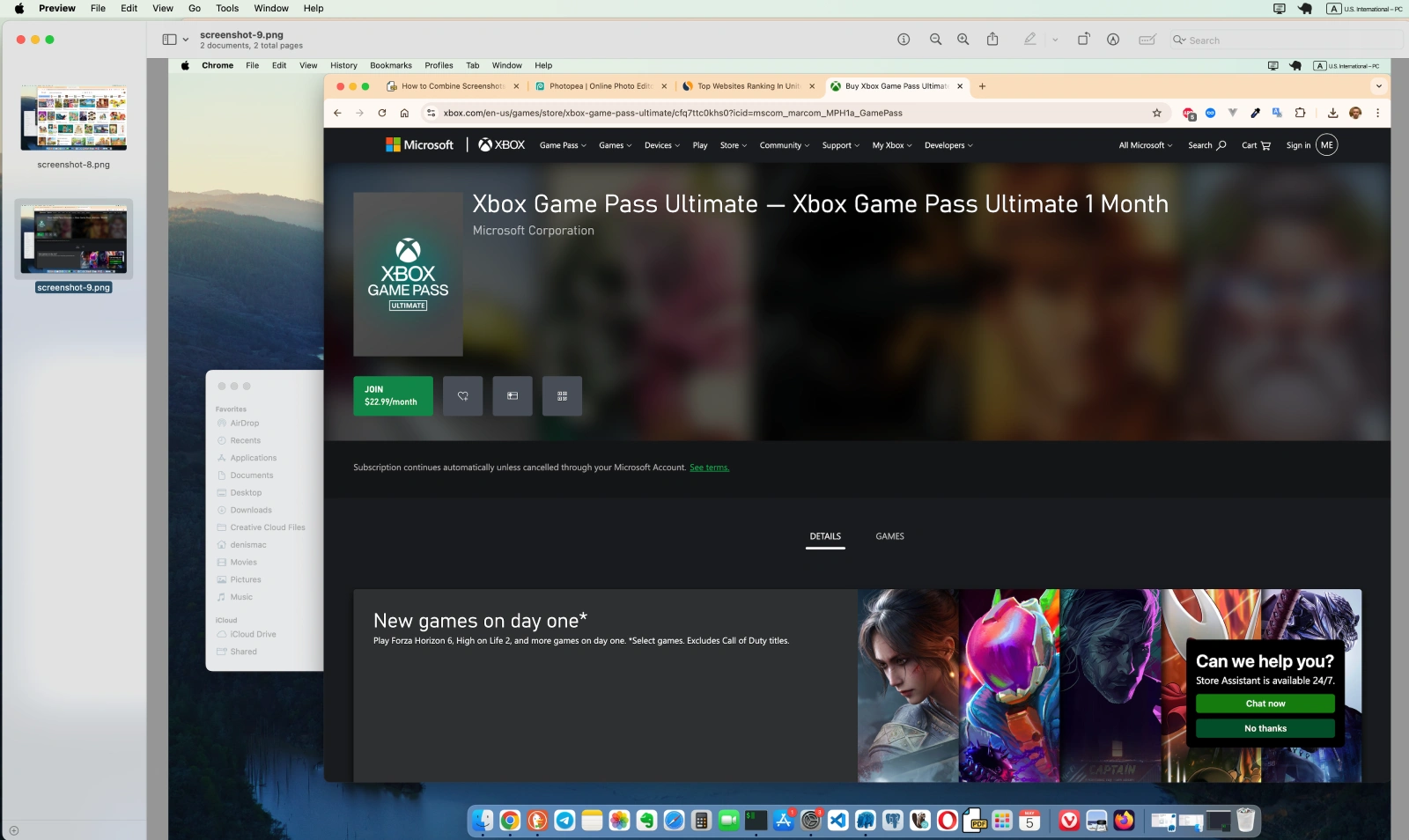
If the screenshots opened in the wrong sequence, you can easily rearrange them before saving. To do this, enable the sidebar via the View > Thumbnails menu. Simply drag the image thumbnails up or down to build a logical structure for your future document.
Pros and Cons
- Speed: Processing takes seconds since it doesn't depend on internet speed.
- Security: Files are not uploaded to servers, eliminating the risk of data interception.
- Limitations: This method is only available to Apple device users.
How to make a PDF from screenshots on Windows (via "Print")
In the Windows operating system, creating PDF documents is implemented through a virtual print driver. This method is architecturally secure because Microsoft Print to PDF operates as a local isolated process. Your images do not enter the cloud or get transmitted to processing servers, which fully aligns with the data privacy standards of 2026.
Using the "Photos" system app
- Open the folder where your screenshots are saved.
- Hold down the Ctrl key and click on each image you want to add.
- Right-click on any of the selected files and select Print.
- In the settings window that appears, select Microsoft Print to PDF as your printer.
- Click "Print", choose the save path, and enter a file name.
The sorting issue in Windows
Users often find that Windows disrupts the page sequence in the final PDF. This happens because the system starts the print queue from the file that was finally right-clicked, rather than the first one in the list.
To avoid chaos in your document, follow these rules:
- Numbering: Ensure files are named like "01.png", "02.png" (using a leading zero is critical for correct indexing).
- Entry Point: After selecting all files, right-click specifically on the first image in the list.
- Preview: In the Windows Print window, use the navigation arrows to check if the image queue is formed correctly before the final conversion.
The Fastest and Safest Way: Merging in the Browser (Web)
Web tools are the most universal path since they work on any OS without software installation. However, in 2026, the approach to choosing a service has radically changed due to new digital hygiene standards.
Why are online tools usually dangerous?
Most popular converters operate on an outdated model: you upload screenshots to their server where processing occurs, and only then do you download the result. This creates critical risks: your private data (chats, bank details, work reports) can remain in the service's cloud storage for hours or even days, making them vulnerable to data breaches.
HeadPDF: Desktop-level Privacy in One Click
Modern services like HeadPDF utilize Client-side processing technology. This means all file operations take place using your browser's resources (WebAssembly and JavaScript).
- Zero bytes to server: Your screenshots never leave your computer's RAM.
- Instant conversion: No time is wasted on "Uploading" and "Downloading" heavy images — everything works at the speed of your processor.
- Privacy: Even if your internet connection drops during the process, the conversion will complete successfully.
How to merge dozens of screenshots in 5 seconds
The process is fully automated and requires no technical skills:
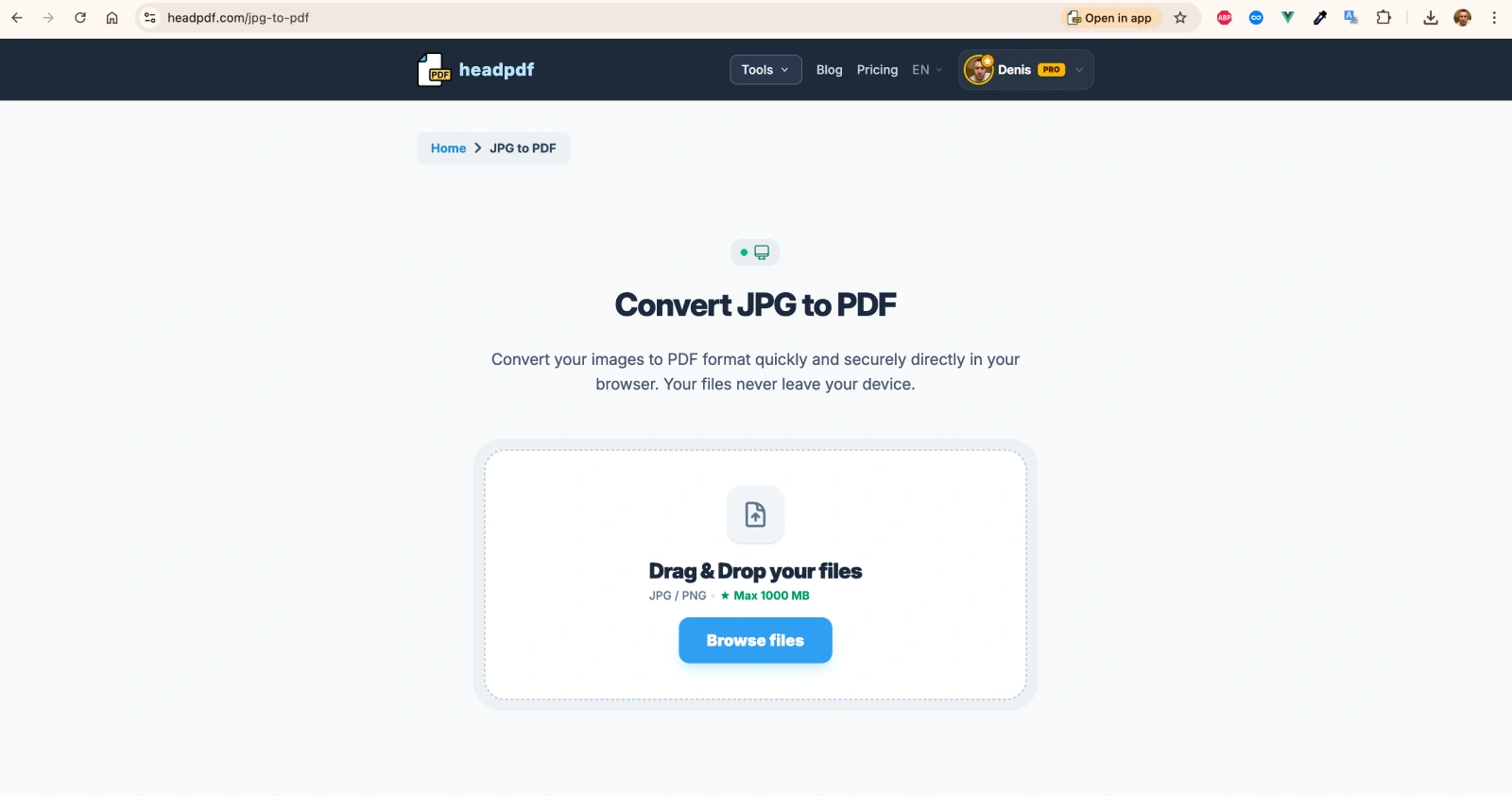
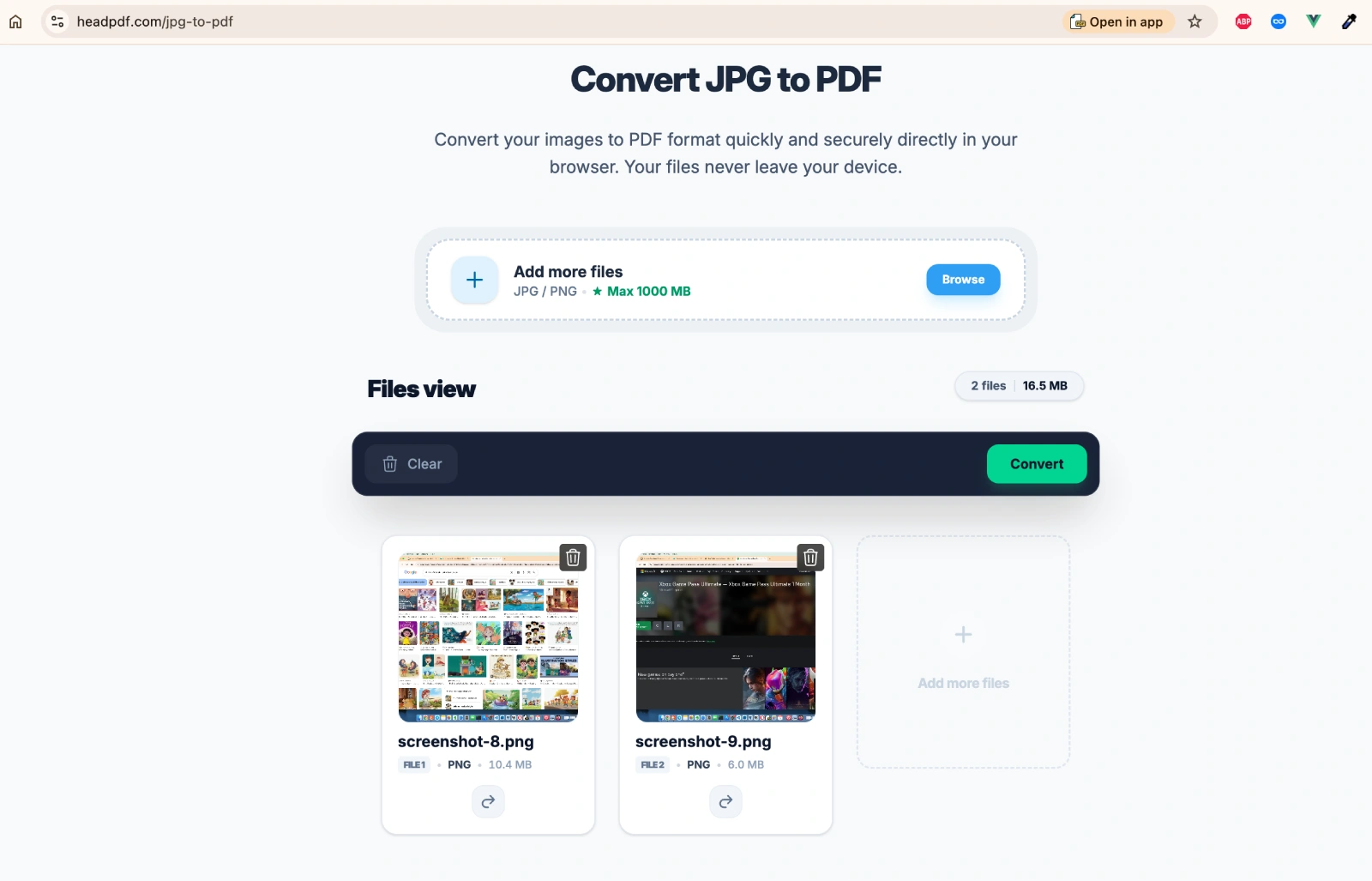
- Open a browser tab and go to headpdf.com
- Select your screenshots or drag them into the Drag-and-drop zone.
- Use your mouse to change the page order — simply click and drag the image card.
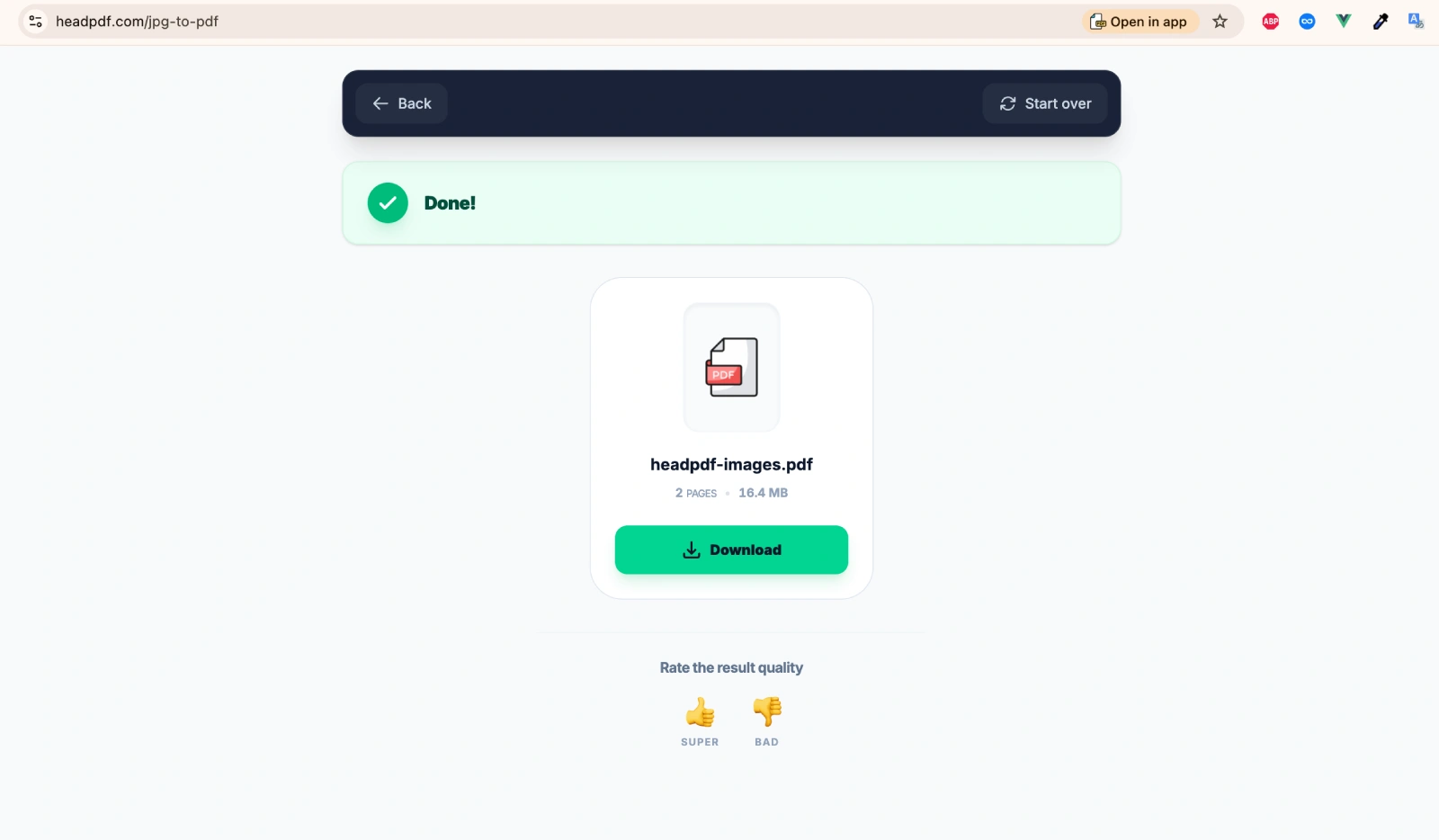
- Click the Convert button and instantly receive your finished document.
Method Comparison: Which One Should You Choose?
The choice of tool depends on your operating system and security requirements. While Mac or Windows system solutions are limited by their platform, 2026 web technologies offer universality without compromising on privacy.
| Method | Speed | Privacy | Cross-platform |
|---|---|---|---|
| Mac Preview | High | Maximum | macOS only |
| Windows Print | Medium | Maximum | Windows only |
| Traditional Web Services | Network dependent | Low (server-side) | Any OS |
| HeadPDF | Instant | Maximum (local) | Any OS |
As the analysis shows, HeadPDF effectively eliminates the dilemma between convenience and security. You get the flexibility of an online tool combined with the protection level of desktop software. Since images are not transmitted to the server, this method is the only secure solution for handling confidential screenshots (financial reports, private chats, login credentials) on any device — from smartphones to workstations.
Frequently Asked Questions about Merging Screenshots into PDF
Can I merge screenshots on iPhone or Android?
Yes, it works on any mobile OS. On iOS, you can use the "Files" app (via the Print menu), and on Android, Google Photos. However, the most convenient way is to use a browser tool with client-side processing, where you can quickly sort images using touch gestures without installing additional apps.
Is image quality lost during conversion?
No, as long as you use modern converters. PDF acts as a container that preserves the original resolution of your PNG or JPG screenshots. Quality only decreases if the service specifically uses compression to reduce the file weight.
Is it safe to upload screenshots with personal data?
It is only safe if the service works locally in your browser. Traditional online converters send files to their servers, which creates risks. In contrast, tools with client-side processing (like HeadPDF) guarantee that the data never leaves your device.
How do I change the order of screenshots in the final document?
The easiest way is through the Drag-and-Drop interface in the web version of the tool. You can simply drag the image thumbnails to set the desired sequence before clicking the merge button.
What formats are supported for merging?
In 2026, standard tools support not only PNG and JPG but also modern formats like WebP and Apple's HEIC. You don't need to pre-convert screenshots from an iPhone — the system will handle it automatically during the merging process.
Are there any file size limits?
With local processing, limits depend solely on your RAM capacity. This allows you to merge dozens of "heavy" images much faster than through cloud services, where speed is bottlenecked by your internet connection (Upload speed).
How to merge screenshots for free and without watermarks?
Use built-in system utilities (Preview on Mac, Print to PDF on Windows) or specialized web services with open architecture. They don't add unnecessary labels to your documents and don't require a paid subscription for basic tasks.
Conclusion: Choose Convenience Without Compromise
Merging screenshots into a PDF is a basic task that in 2026 should be handled instantly and securely. While Windows and macOS system tools are reliable, they are often inconvenient for managing large volumes of files or when switching between platforms.
Using web technologies with client-side processing combines the best of both worlds: browser universality and the privacy of local software. This allows you to focus on your work without worrying about the safety of your personal data.